What Is NetMirror?
NetMirror gathers movies and web series from many OTT platforms into one free catalog with a Netflix-like interface. It is available as a website and as Android apps for phones and TVs. Its official home page, netmirrortvapk.net, has a device picker with a separate tab for computers.
Option 1: Use NetMirror in Your Browser
This is the official way to watch on a computer, and it needs no NetMirror download or installation.
- Open the netmirrortvapk.net home page in Google Chrome or Mozilla Firefox, the two browsers the site recommends.
- Choose Computer and click Go to Home. This opens the current NetMirror web address.
- Browse or search, then press play. Switch the browser to full screen for the best view.
Bookmark the home page rather than the streaming address itself, because the home page always links to the latest address.
Option 2: Run the NetMirror APK for PC in an Emulator
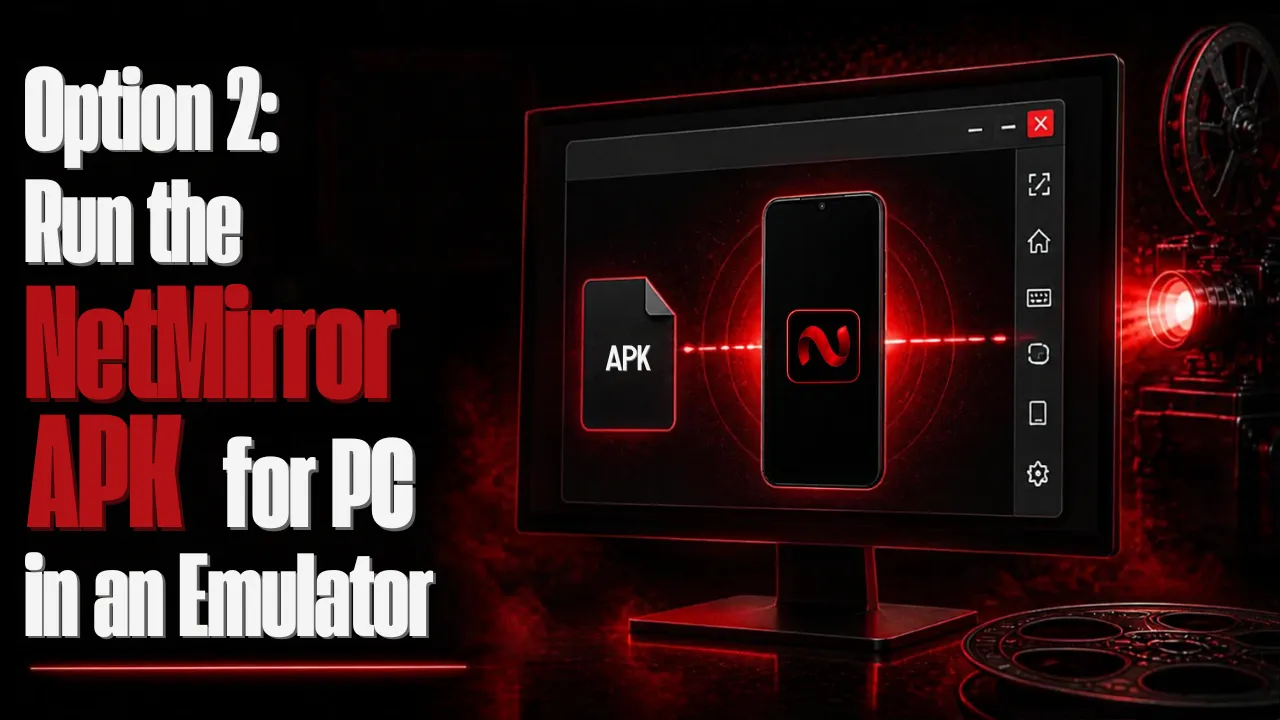
An Android emulator runs Android apps in a window on Windows or macOS, so you get the same app you would use on a phone. The NetMirror APK download includes x86 and x86_64 versions alongside the ARM ones, and x86 is what most PC emulators use.
- Install an emulator such as BlueStacks, LDPlayer, or MEmu from its official website. On a Mac, choose one that supports Apple Silicon (M-series) chips.
- Get the NetMirror download for Android (version 3.1, 51.5 MB) from the official home page.
- Drag the APK into the emulator window, or use the emulator's Install APK button.
- Open NetMirror from the emulator's home screen and start browsing.
Most emulators need at least 4 GB of RAM, several gigabytes of free storage, and hardware virtualization (Intel VT-x or AMD-V) turned on. Microsoft's Windows Subsystem for Android was discontinued in March 2025, so an emulator is now the practical way to run Android apps on Windows.
Browser or Emulator: Which Should You Choose?
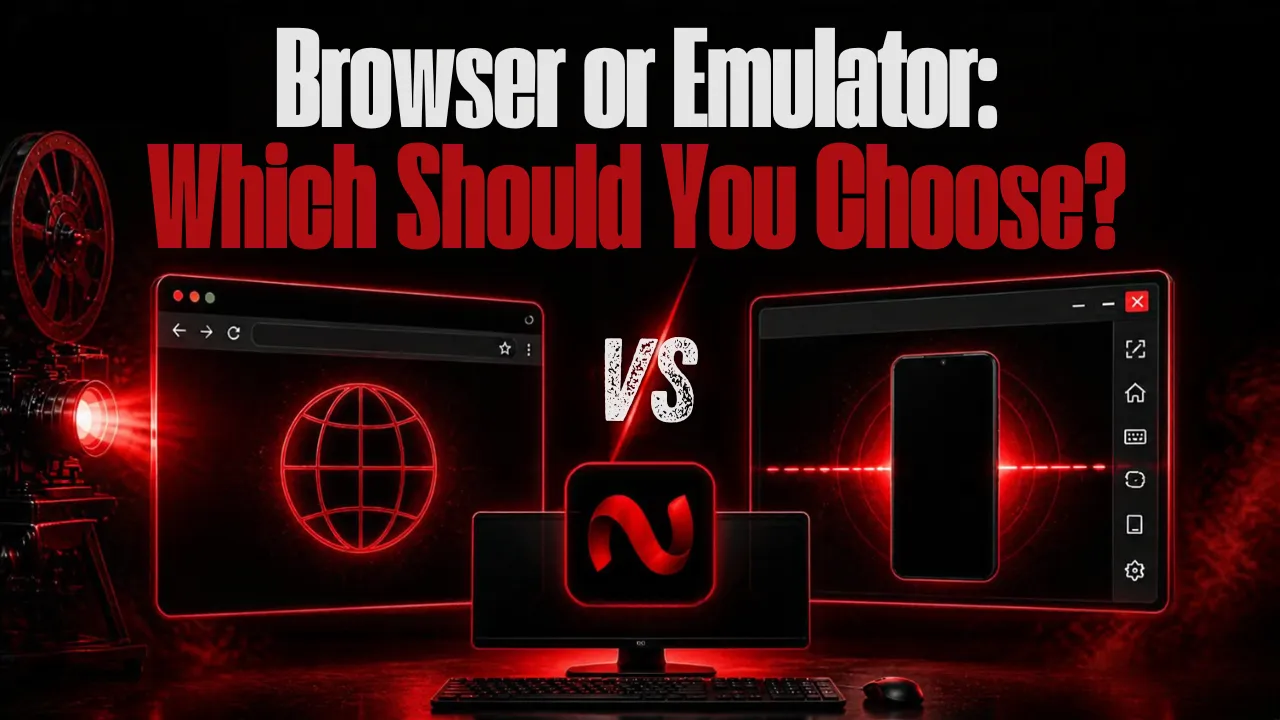
- Choose the browser if you want the quickest start, a large window, and no extra software.
- Choose an emulator if you prefer the NetMirror app download interface you know from your phone, or want to keep it separate from your everyday browser.
The browser uses fewer resources, which matters on older laptops. An emulator needs more memory but gives you the same layout as the app on your phone. Either way, you are using the same service, so pick whichever feels more comfortable.
Final Thoughts

There is no true NetMirror APK download for PC, but the browser version and an Android emulator both bring NetMirror to a computer screen. The browser is the simplest route, while the emulator suits anyone who prefers the phone app. Start from the official NetMirror home page so you always land on the current address.